• العربية
  • Azerbaijani
  • Català
  • 中文
  • Hrvatski
  • Čeština
  • Dansk
  • Nederlands
  • English
  • Estonian
  • Persian
  • Français
  • Deutsch
  • עברית
  • Magyar
  • Italiano
  • Macedonian
  • Norwegian
  • Português
  • Português
  • Română
  • Русский
  • Español
  • Svenska
  • Türkçe
  • Українська
  • Rekening
    • Aanmelden
    • Registreren
    • Wachtwoord vergeten?
  • FairyHosting.com
    • Services
      • Mijn services
      • Bestellen
      • Domeinnamen
      • DNS MANAGER
    • Payment
      • Invoices
      • Krediet opwaarderen
      • Alles in één keer betalen
    • Support
    • Knowledgebase

      Categorieën

    Hestia CP
    2
    ISPmanager
    9
    Linux Сервер
    26
    Plesk
    14
    Windows Сервер
    16
    Услуга Fairy Disk
    4
    Микротик (RouterOS)
    8
    Менеджмент сервера
    19
    Для нового клиента
    13

      Categorieën

      Tag-cloud

    Debian Восстановление root пароля CentOS7 Linux сброс root пароля CentOS7 сервер Password recovery Root password Ubuntu

      Ondersteuning

    Mijn Support Tickets
    Kennisbank
    Maak een helpticket aan

    Setting Up Webcam and Microphone in a Windows Server Remote Desktop Session Afdrukken

    • 0

    Windows Server supports communication applications such as Zoom, Microsoft Teams, and other conferencing tools. To ensure these programs work correctly through the Remote Desktop Protocol (RDP), you must configure audio and video input forwarding and enable audio playback from the server on your local device.

    This guide walks you through the full setup process.


    1. Configure RDP Client Settings

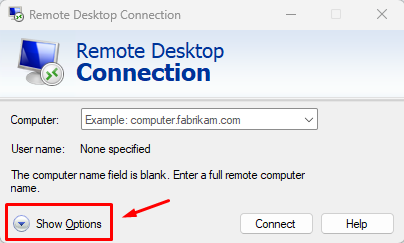
    Open Remote Desktop Connection

    1. Launch the Remote Desktop Connection client.

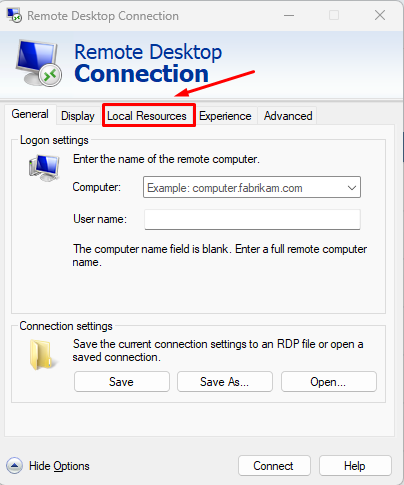
    2. Click “Show Options.”

    Local Resources

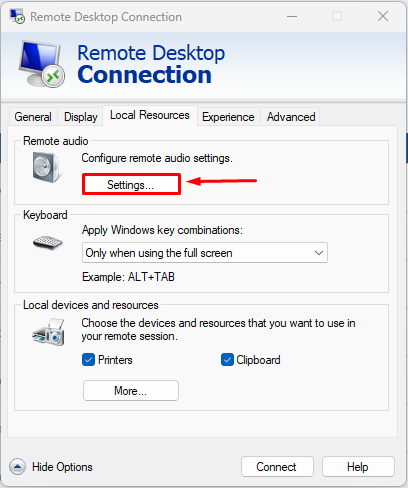
    Navigate to the “Local Resources” tab.
    Remote Audio Settings

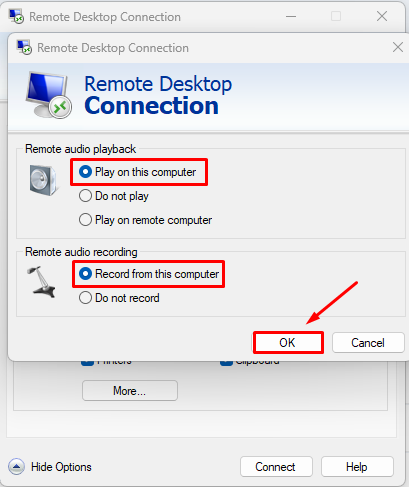
    1. Click “Settings” under Remote audio.

    2. Enable:

      • Play remote audio on this computer

      • Record audio from this computer

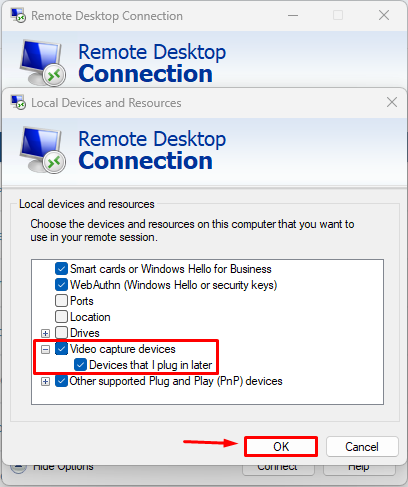
    Forwarding Your Webcam

    1. In the Local devices and resources section, click “More…”
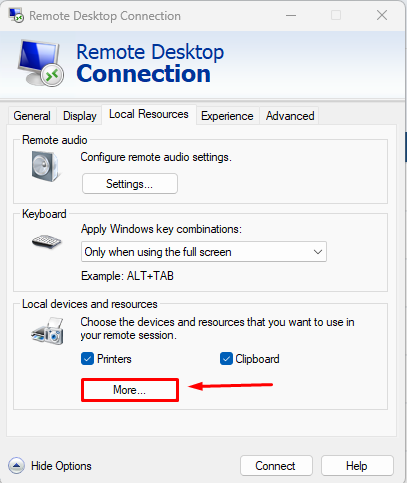
    2. Under Video capture devices, select your webcam.

    3. Enable permission for devices that may be connected later. 

    2. Fix Sound Issues on Windows Server

    After connecting to your Windows Server, you may notice that audio is not working.
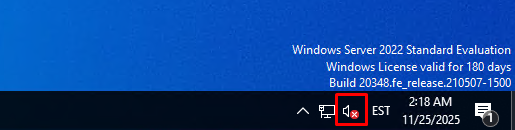
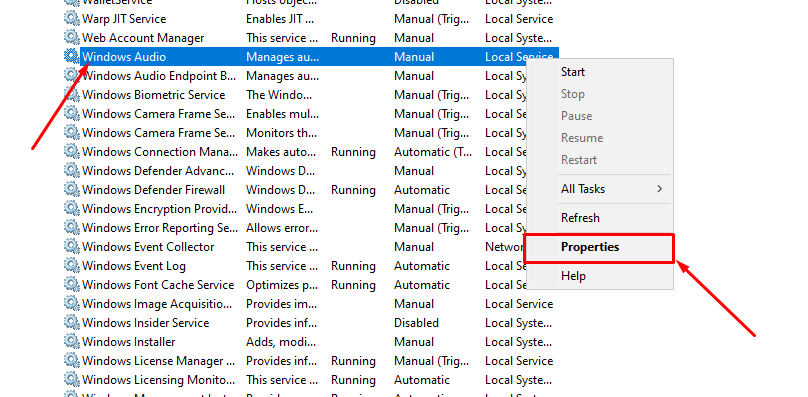
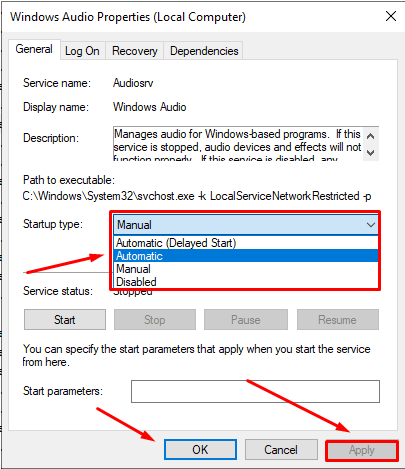
    Start the Windows Audio Service

    1. Press Win + R, type services.msc, and press Enter.

    2. Find Windows Audio in the list.

    3. Right-click → Properties.

    4. Set Startup type to Automatic.

    5. Click Apply, then Start the service (if it hasn’t started).

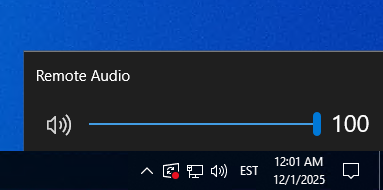
    Remote audio playback should now function correctly.

    3. Install Required Components for Microphone Support

    Microphone redirection requires additional Remote Desktop components.

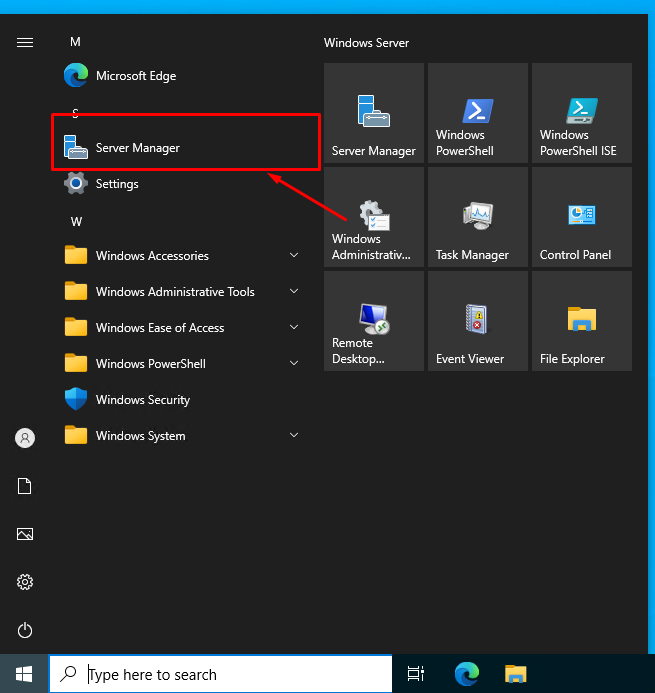
    Open Server Manager

    1. Open the Start Menu → Server Manager.

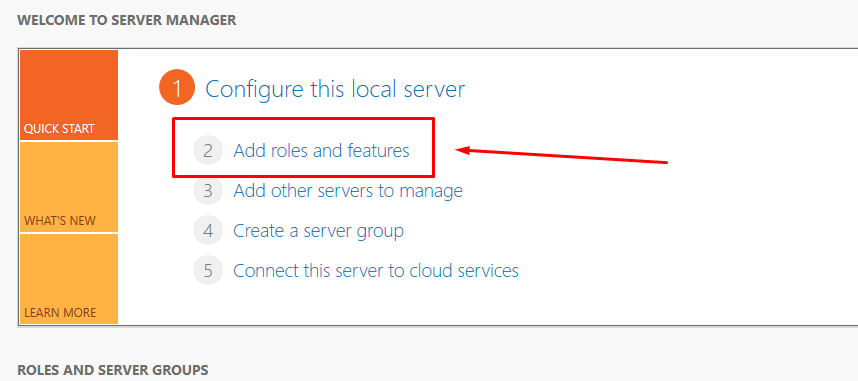
    2. Click “Add roles and features.”

    Installation Steps

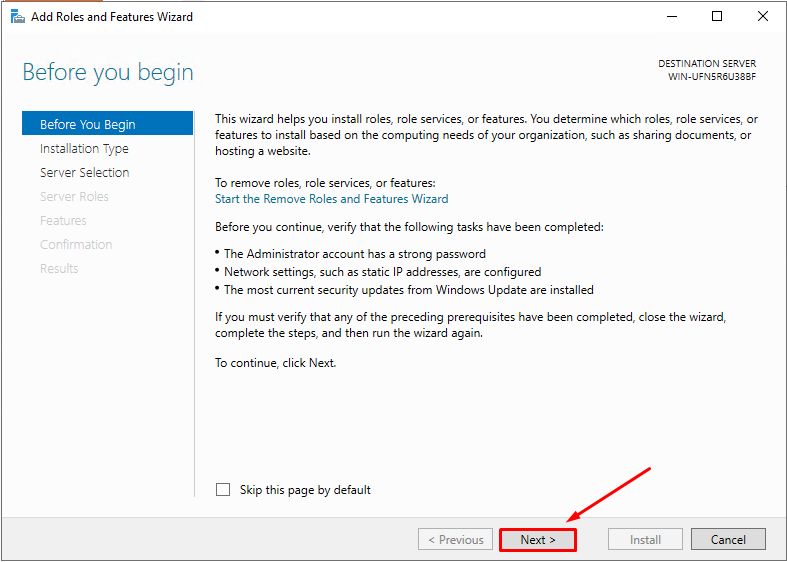
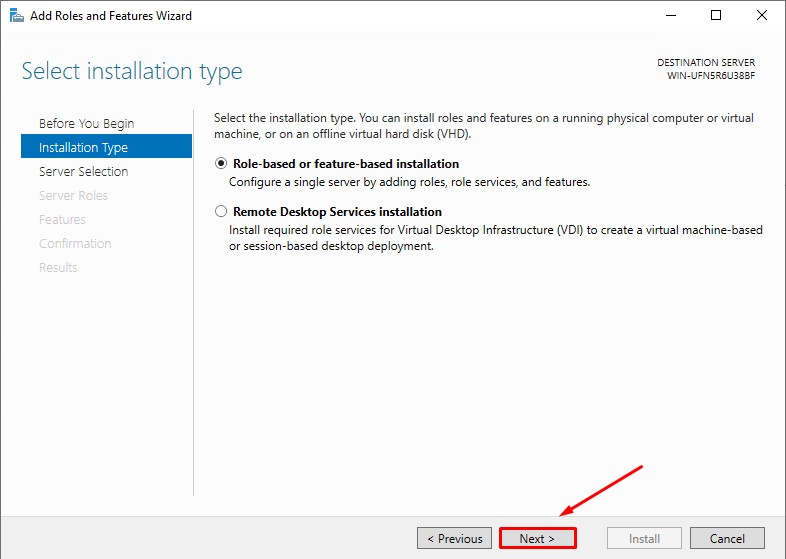
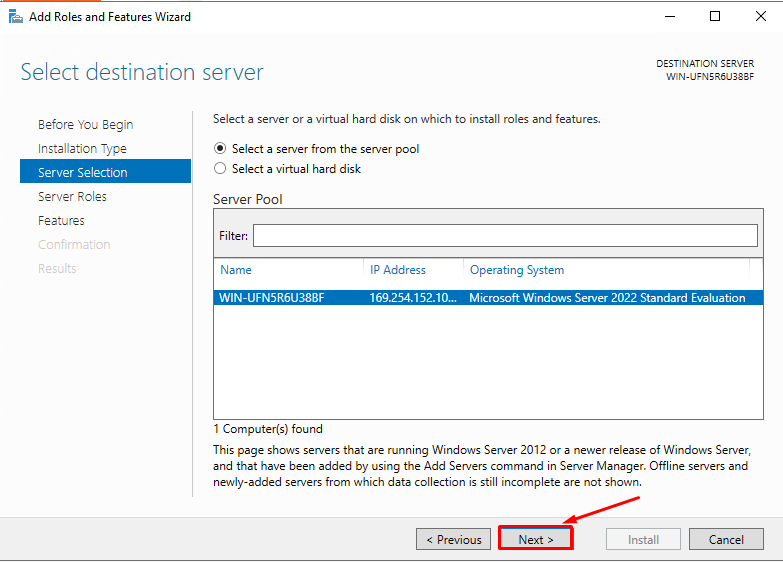
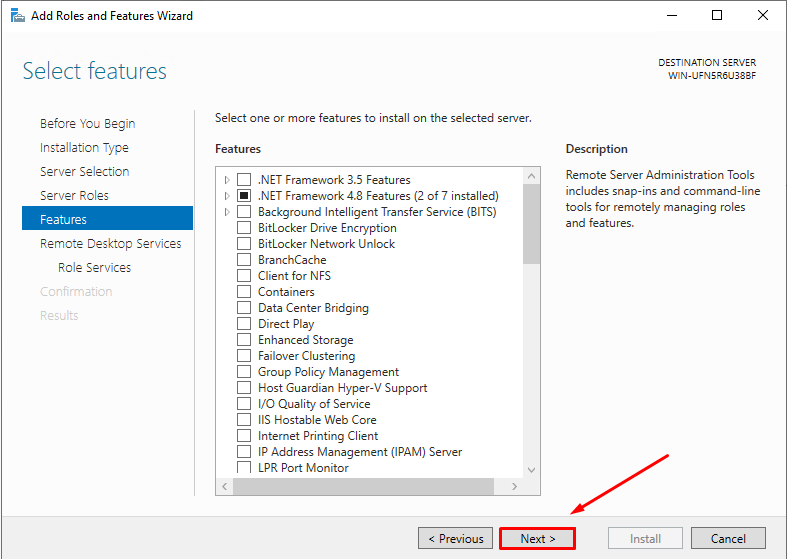
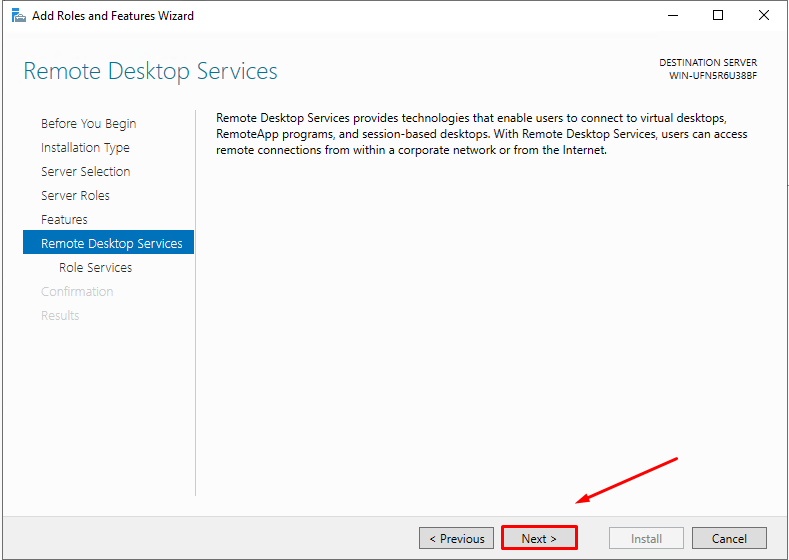
    Continue through the wizard:

    • Click Next

    • Click Next again

    • Select your server → Next

    • Choose Remote Desktop Services → Next

    • Next

    • Next

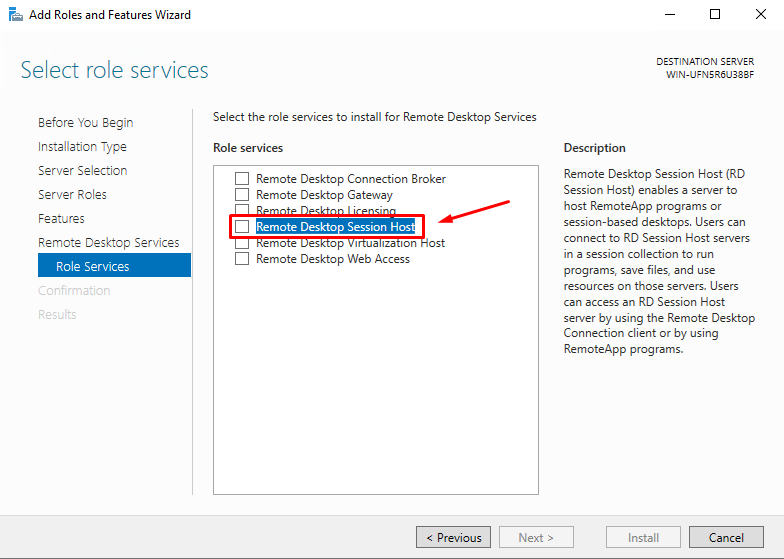
    Select Required Role

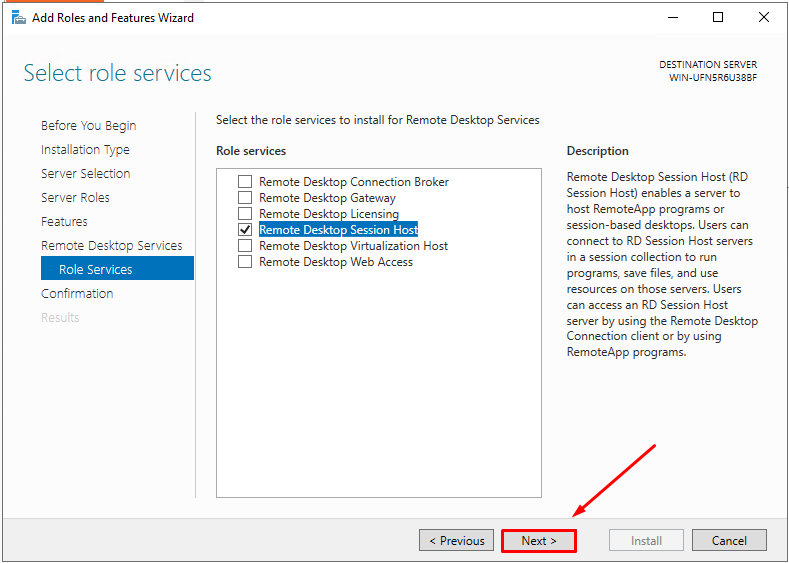
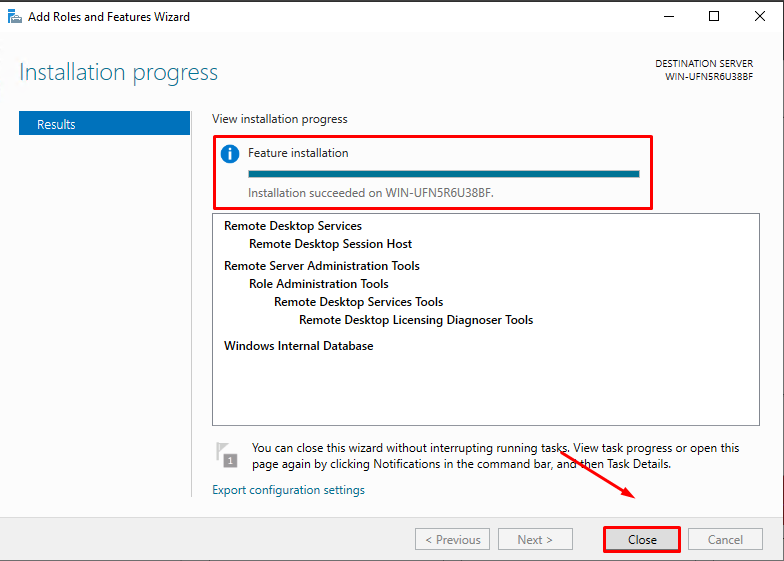
    1. Choose Remote Desktop Session Host.

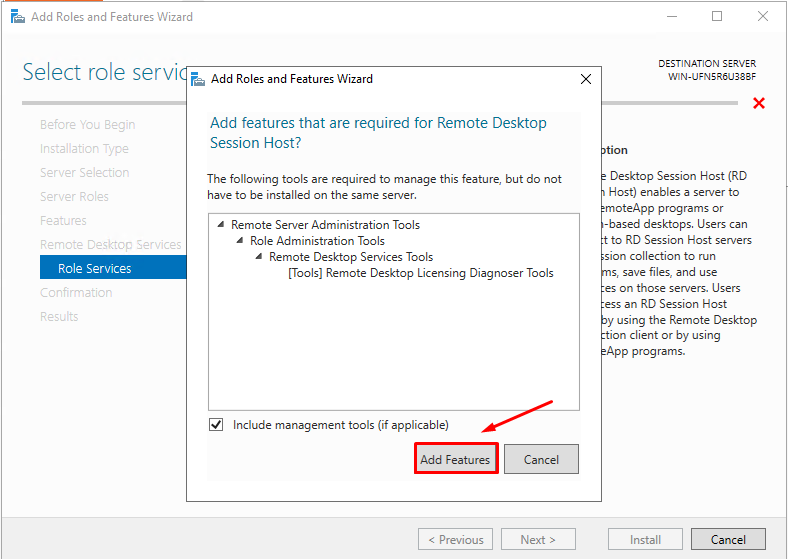
    2. Confirm adding required features.

    3. Click Next.

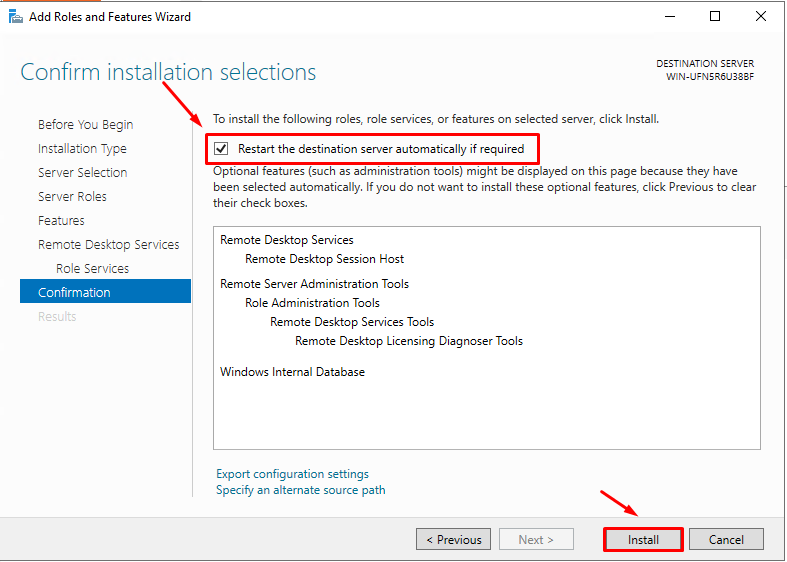
    4. Allow automatic restart.

    5. Click Install.

    The server will reboot and continue installation.
    Reconnect once it restarts and wait for installation to finish.

    4. Configure Audio Input on Windows Server

    Open Audio Settings

    1. Open the Start Menu → Settings → System → Sound.

    2. You should see Remote Audio listed as a microphone device.
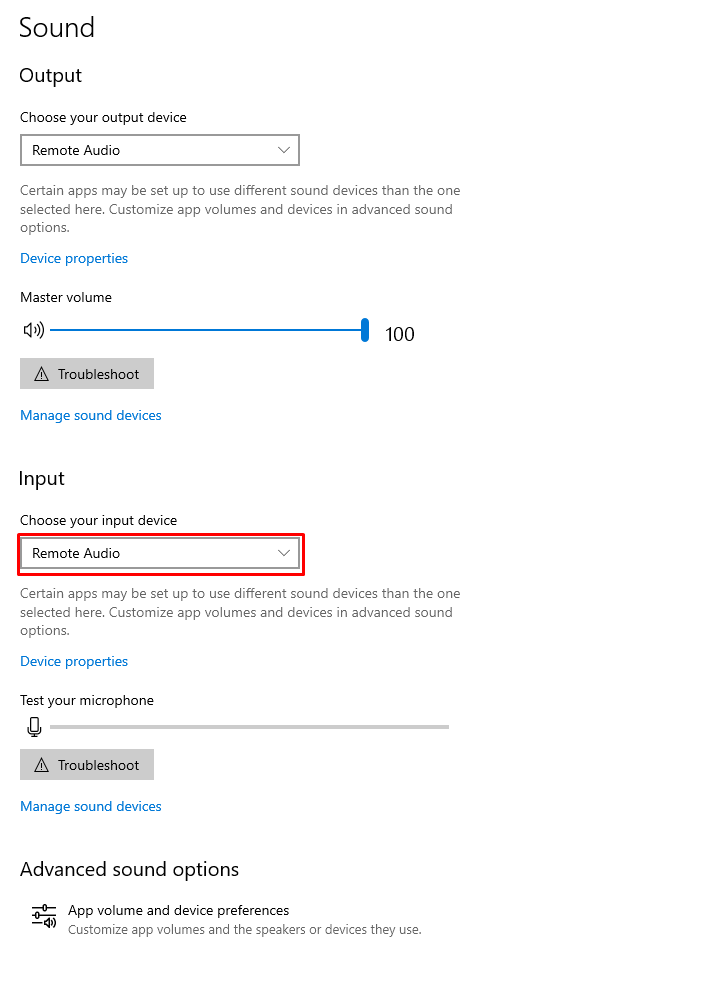
    Speak into your microphone to verify that the input bar reacts.


    5. Allow Applications to Access the Microphone and Camera

    Microphone Privacy Settings

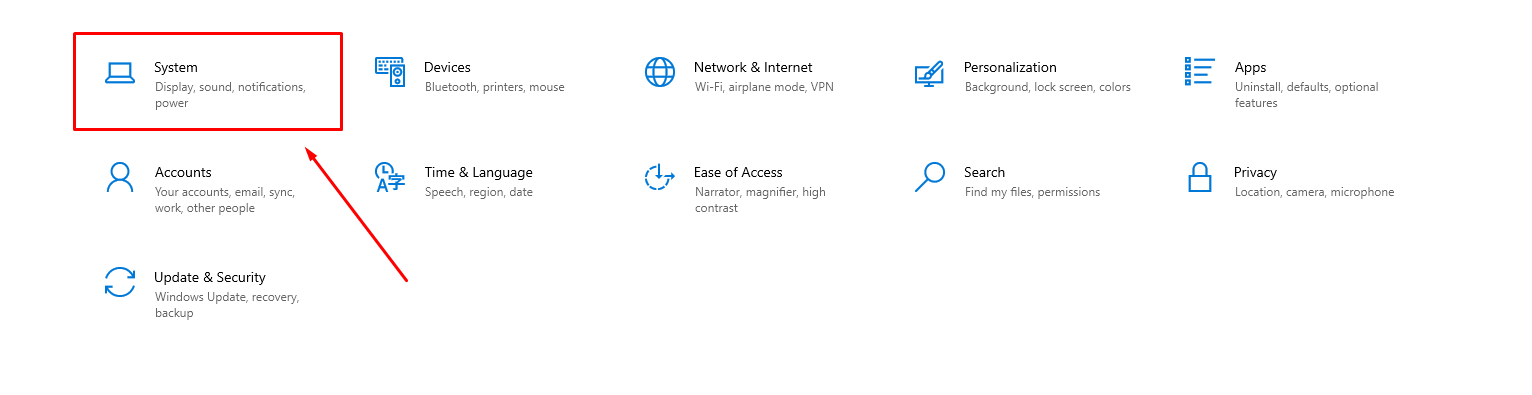
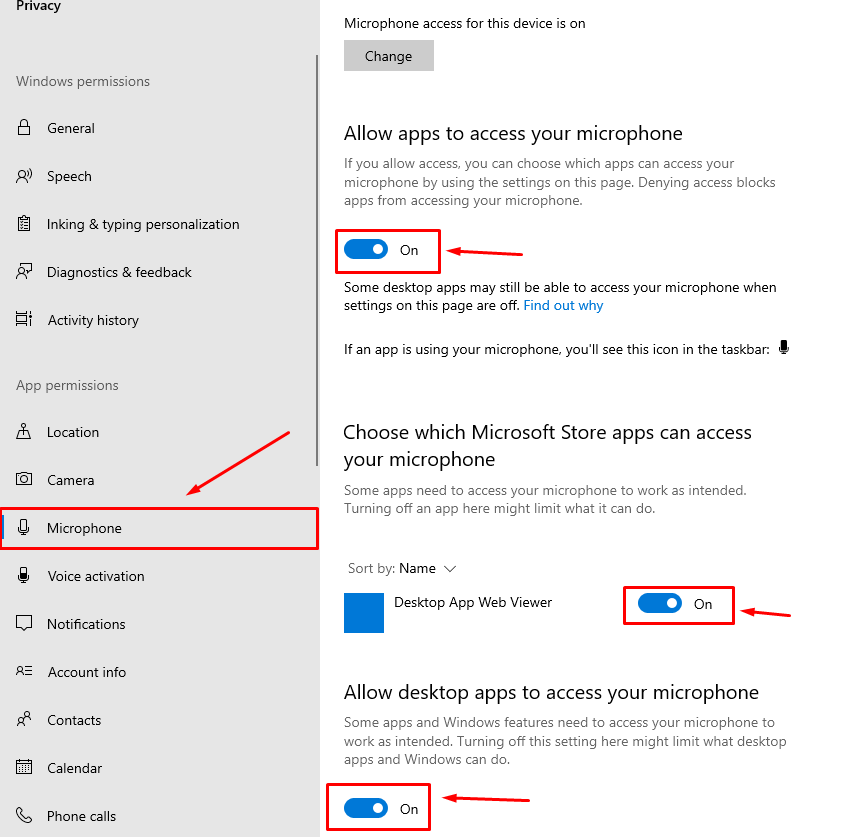
    1. Open Settings → Privacy → Microphone.

    2. Allow apps to access your microphone.

    Camera Privacy Settings

    Repeat the steps under Privacy → Camera.
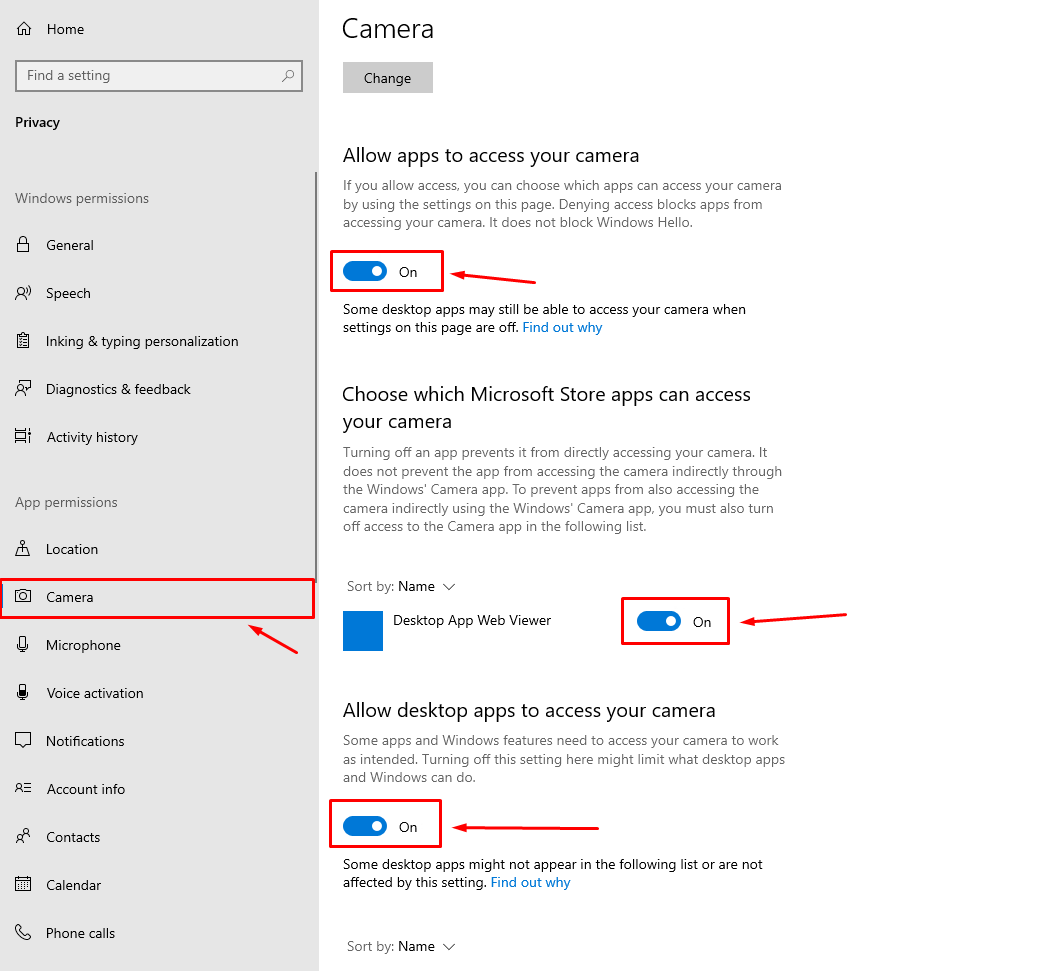
    These permissions are required for Zoom, Teams, and similar applications.


    6. Final Check

    Your Windows Server is now fully configured for audio and video communication over RDP.
    You can test functionality using any conferencing application.

    If issues arise with the microphone or webcam, double-check:

    • RDP client settings

    • Privacy permissions

    • Windows Audio service status


    Was dit antwoord nuttig?

    Gerelateerde artikelen

    Windows server default port changing Windows servers are remotely accessible with Remote Desktop via the TCP 3389 port (default port).... How To Clear Your DNS Cache in Windows Overview Your DNS cache stores the locations (IP addresses) of web servers that contain web... How to manage partitions with the Disk Management tool in Windows In this article show you, how to: create hard disk partitions in Windows operation system... Password recovery in Windows server 2012. In this article we to consider how to reset password in oprating system Windows server 2012. If... Storage device check from different manufacturers (Samsung, Intel, Kingston) Download official disk check software for searching any errors.   Samsung Download original...
    « Terug

      Tag-cloud

    Debian Восстановление root пароля CentOS7 Linux сброс root пароля CentOS7 сервер Password recovery Root password Ubuntu

      Ondersteuning

    Mijn Support Tickets
    Kennisbank
    Maak een helpticket aan
    • Billing
      • Services
      • Invoices
      • Support
      • Knowledgebase
    • Services
      • Virtual servers
      • Dedicated servers
      • Colocation
      • Business hosting
      • Fairy Disk
      • Routers for rent
      • SSL-Certificates
    • News
    • Company
      • About Us
      • Contacts
      • User agreement
      • Privacy policy
    • Technologies

      RJ Network OÜ
      Reg.nr 14694302
      VAT ID: EE102147829

      Narva: P. Kerese tn 5, 20309
      Tallinn: Paul Pinna 8, 13615

    +372 6647001

    info@fairyhosting.com

    Copyright © 2025 FairyHosting.com. All Rights Reserved.


    Laden...
    Laden...
    Kies taal
    العربية
    Azerbaijani
    Català
    中文
    Hrvatski
    Čeština
    Dansk
    Nederlands
    English
    Estonian
    Persian
    Français
    Deutsch
    עברית
    Magyar
    Italiano
    Macedonian
    Norwegian
    Português
    Português
    Română
    Русский
    Español
    Svenska
    Türkçe
    Українська

    Genereer wachtwoord

    Voer een wachtwoord in dat uit 8 tot maximaal 64 tekens bestaat.